Meizin Voice — AI Voice Typing Tool
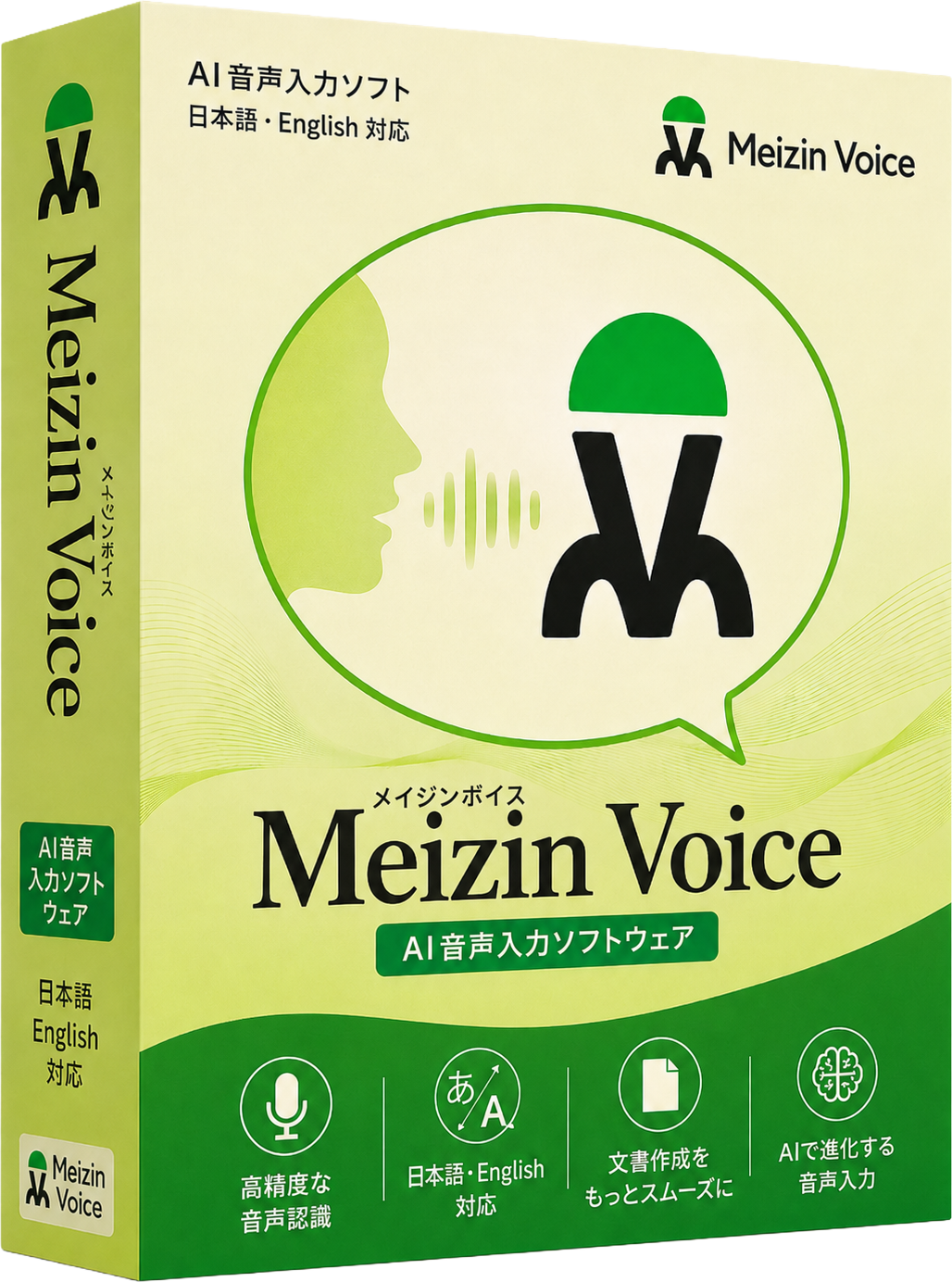
Meizin Voice is a fast, accurate voice typing tool powered by local AI.
No server communication required — the AI on your PC listens to your microphone and converts speech to text instantly.
Perfect for chatting with AI, writing prompts, composing blog posts, Kindle books, emails, Word documents, and more.
One-time purchase — no monthly subscription fees.
Demo Video
Watch the video below to see Meizin Voice in action.
Features
- Fully Local Processing — Your voice data is never sent to external servers. Complete privacy protection.
- GPU Acceleration — Vulkan support for NVIDIA / AMD / Intel GPUs. Instant recognition on GPU-equipped PCs.
- Custom Dictionary — Register frequently misrecognized words for automatic correction. Gets smarter as you use it.
- Built-in Dictionary — 390+ built-in correction patterns for common recognition errors. High accuracy from day one.
- Translation Mode — Speak in your language and get English text output. Great for language learning and international communication.
- Dark Mode — Easy on the eyes with full dark mode support.
- One-Key Activation — Press F9 (customizable) and speak. Text appears at your cursor position in any app.
- One-Time Purchase — No monthly fees. Buy once, use forever.
How to Use
Step 1: Install
Download from Microsoft Store and install on Windows 11. The AI model downloads automatically on first launch.
Step 2: Press the Hotkey and Speak

Place your cursor where you want to type, press F9 (hotkey), and speak into your microphone. Press the hotkey again when finished — your text appears instantly.
This recognition button is called the "hotkey." You can customize it freely. Set it to any key that works best for you on your keyboard.
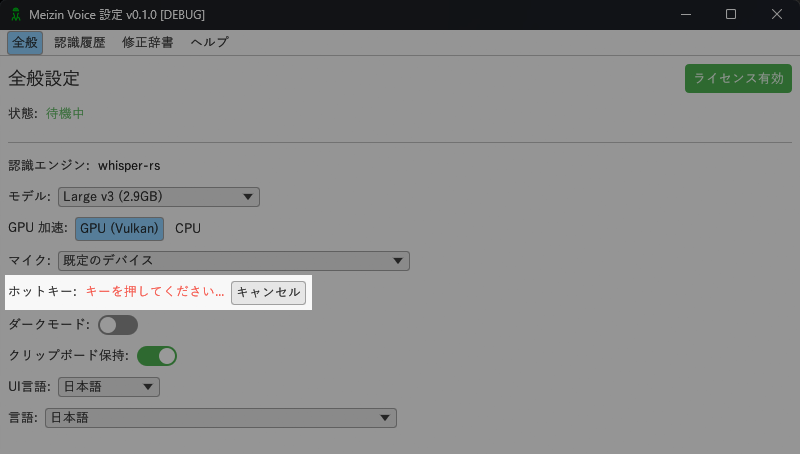
You can even assign the hotkey to a mouse button for one-handed voice typing.
Works great with email, Word, Google Docs, browsers, chat apps, Notepad, ChatGPT, Claude Code, Codex, and more.
Step 3: Improve Accuracy with the Dictionary
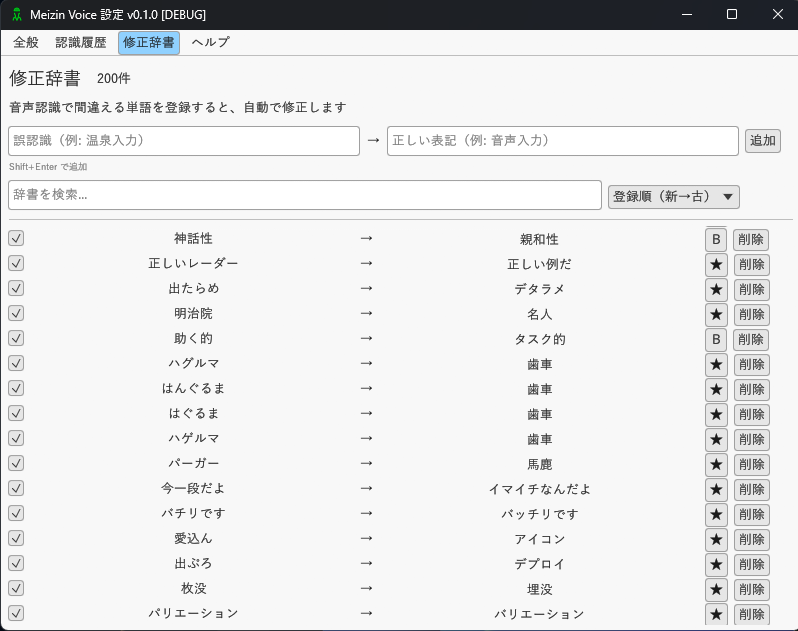
If certain words are frequently misrecognized, simply add them to your custom dictionary. They will be auto-corrected from then on. With 390+ built-in patterns, recognition accuracy is high right out of the box.
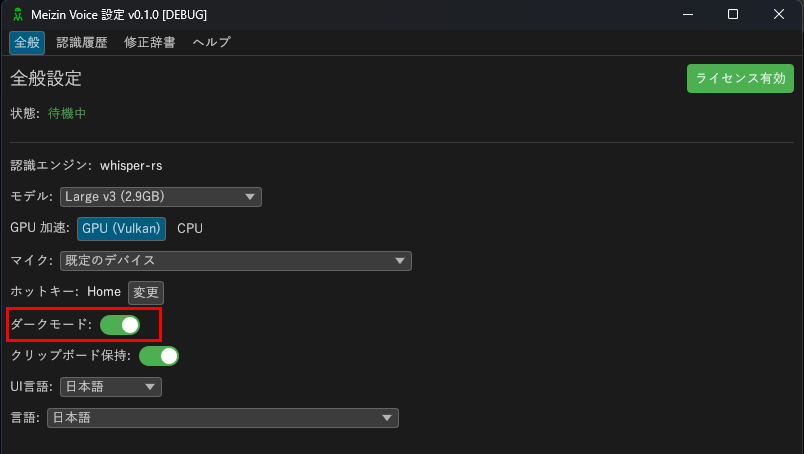
Step 4: Dark Mode
Enjoy a comfortable dark mode interface.
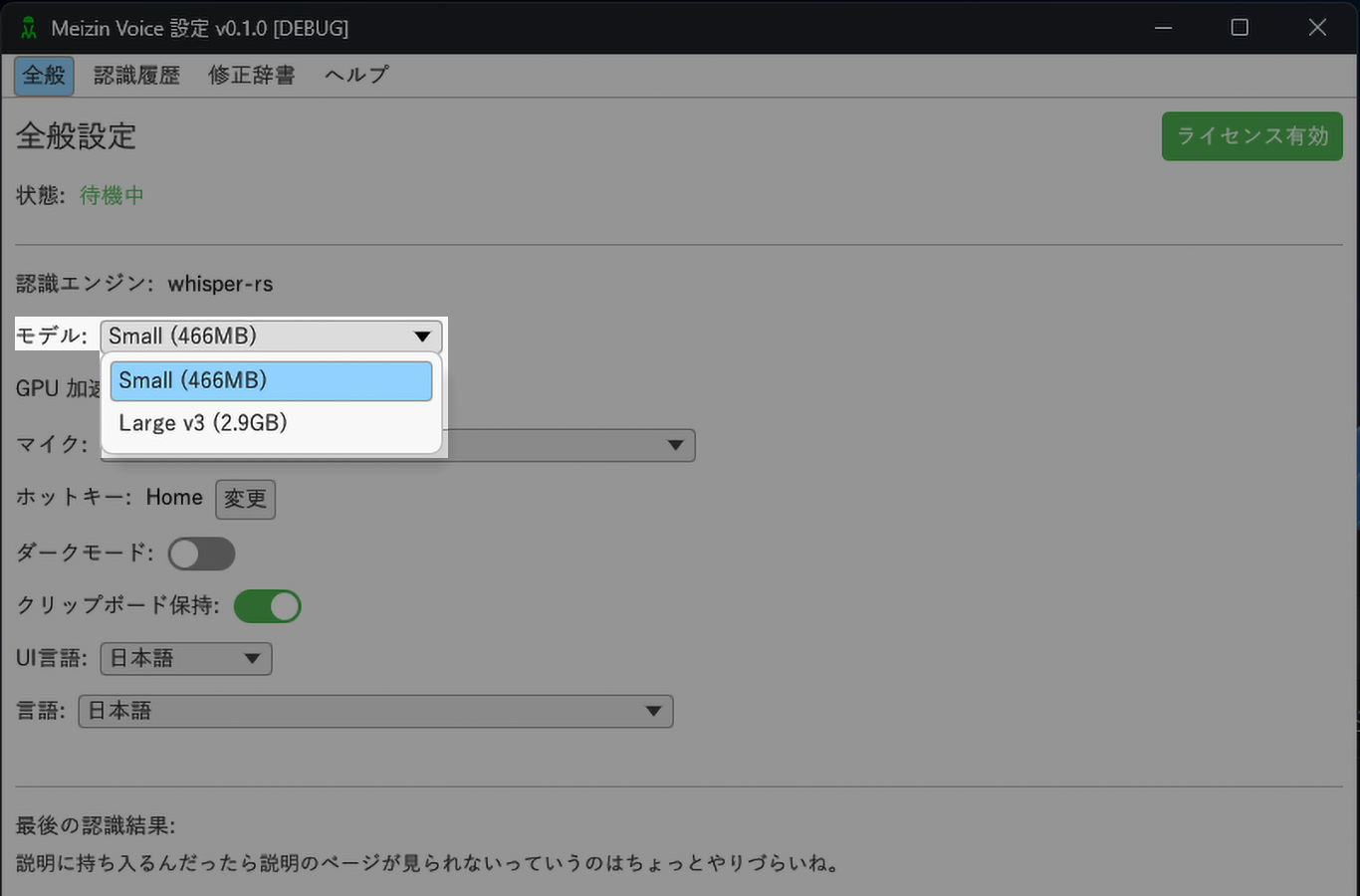
Step 5: Choose Your AI Model
Select from two AI model tiers:
- Small: Ultra-lightweight and fast. Perfect for everyday use.
- Large: High-accuracy model. Enables Translation Mode.
Step 6: Translation Mode (Japanese → English)
With the Large model selected, you can use "Real-Time English Translation Mode."
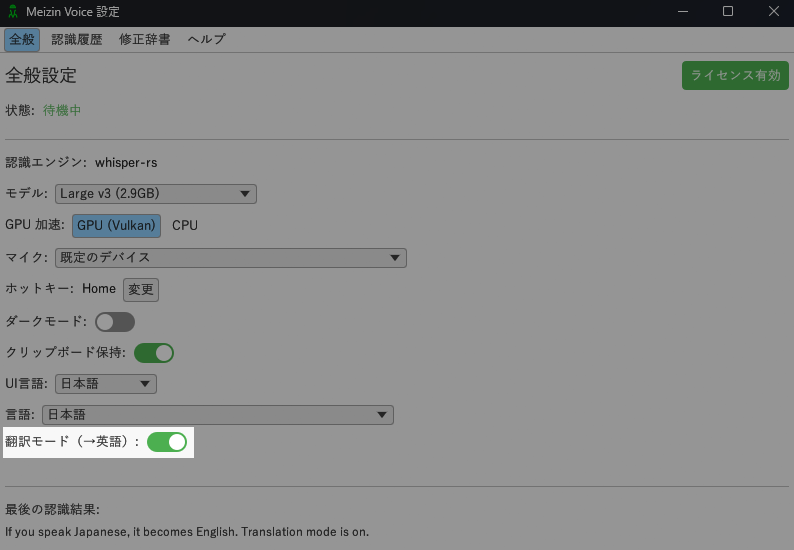
Speak in Japanese and get English text output automatically. Perfect for writing English emails, joining international chats, or language learning!
Just speak naturally — English text appears instantly.
Simply toggle "Translation Mode" ON in the settings.
No complicated setup required.
How is Meizin Voice Different?
Cloud-based (Google Voice Typing, Windows Speech Recognition, etc.)
→ Sends voice data to servers. Requires internet. Privacy concerns.
Meizin Voice
→ Your voice data never leaves your PC. Everything is processed locally. Works even with slow internet. Safe for confidential documents.
Who is it For?
- Anyone who wants fast, accurate voice typing
- AI chat users (ChatGPT, Claude, etc.) who want to input prompts by voice
- Vibe coders who want to voice-type their prompts
- Writers who want to dictate long-form content for blogs or Kindle books
- Anyone who wants to speak in one language and get English text
- Dark mode enthusiasts
- Privacy-conscious users who don't want voice data sent to external servers
- Users who prefer a one-time purchase over monthly subscriptions
System Requirements
- Windows 11 (64-bit)
- GPU recommended (Vulkan-compatible). CPU-only mode also available.
- Microphone required
FAQ
Do I need an internet connection?
Voice recognition works completely offline. Internet is only needed for the initial AI model download, license activation, and update checks.
Which apps does it work with?
Any app that accepts text input — Word, Excel, Notepad, browsers, ChatGPT, Codex, Claude, Claude Code, IDEs, and more. Text is typed directly at your cursor position.
Does it require a GPU?
No, it works on CPU too. A GPU dramatically speeds up recognition (seconds → under 1 second).
How do I use Translation Mode?
Switch to the "Large" model in settings and turn on "Translation Mode." Speak in Japanese, and English text is output automatically.
Can I get a refund?
We do not offer refunds after purchase.
You can try all features free for 15 days. Please only purchase if you are satisfied with the trial.
Can I use it on multiple PCs?
1 license = 1 PC. When you get a new PC, you can transfer your license to it.
Special Offer
Try all features free for 15 days — no credit card required.
Full access to every feature during your trial.
$29.99 (one-time purchase)